Tuesday, December 18, 2018

How does Xtuner E3 work on Ford (Europe) Focus 1.6 tdci DPF Reset?


Hook Xtuner E3 diagnostic tool up to one Ford (Europe) Focus 1.6L 2003 and perform a series diagnostic functions incl. read & clear trouble code, data list, active test, special functions etc. It runs good, I like it very much and would like to share how it works.

Procedure:
* Before using Xtuner E3 to work on Ford Focus 1.6 tdci DPF Reset, please read the quick user manual (incl. registration and activation).

Select "Diagnosis Service".

Select Ford (Europe).


The Ford coverage of Xtuner E3.
Select "Diagnose".
Select "Vehicle Auto Scan".
Please turn the ignition on.
Ford Focus value.
System selection.


Many systems are supported.

We go for " PCM - Powertrain Control Module".
Have options "Trouble code, data list, active test, special function".
Firstly go for "Trouble code".

Retrieve CMDTCa .
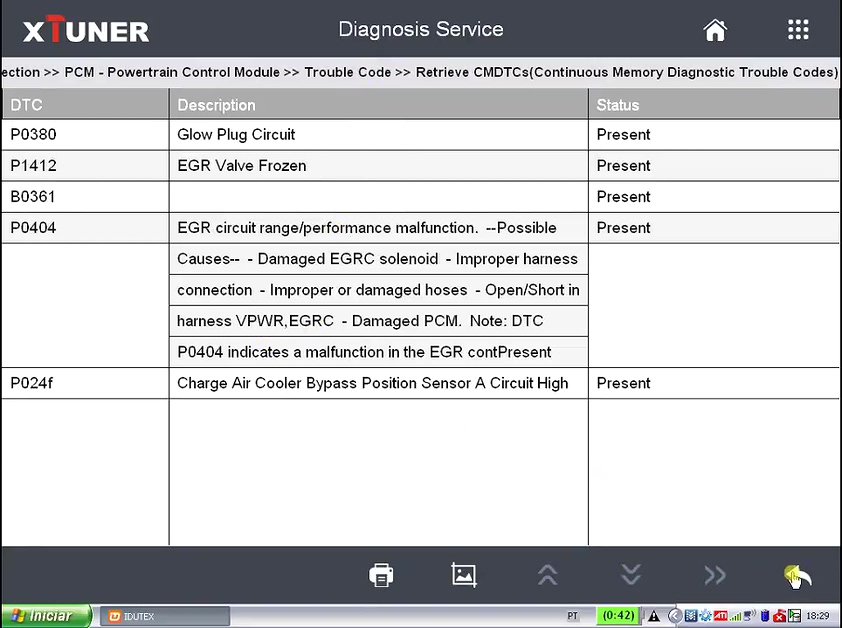
Back to select "Data list".

Here attach a part values.


Take several value for example.


Go for special functions. 

Select "Reset the Diesel Particulate Filter Learned Values".

Just follow the on-screen instruction. 


Choose more data list for value and unit. 
Active test option.

Back to select "Quick Test" to see the value. 


DTC, description and status.


Back to select "Auto scan" for data list.

You can also select the part you want for the value. 

....
Ok, anyway Xtuner E3 diagnostic tool runs fluently, it's good for Ford Focus diagnostic service incl. read & clear trouble code, data list, active test, special function.

I enjoy it.

Wednesday, February 28, 2018

XTUNER CVD-16 Heavy Duty & Passenger Scanner

XTUNER CVD-16 is a commercial vehicle diagnostic adapter based on android system. This is an electronic device that connects to your truck, fire engine, or motorhome’s on-board computers (ECUs) and transmits information via Bluetooth to the XTUNER CVD application.
 
 
Hardware Environment: 
 

Monday, January 23, 2017

XTUNER T1 Heavy Duty Diagnostic Tool User Manual


Here is step by step tutorial on How to install, activation XTUNER T1 Heavy Duty diagnostic tool for new users.

1. Running environment
Hardware environment:
Windows laptop, PC or PAD
CPU speed: more than 1.0G Hz
Memory: more than 1GB
Disk: more than 32 GB
Communication port: Wi-Fi or USB
Software environment:
Windows XP, Windows 7, Windows 8, Windows 10

2. Software installation
Access the website, go into the Support page to download “XTUNER-T1 Setup Vx.xx”

Unzip XTUNER-T1 Setup Vx.xx and run XTUNER-T1 setup.exe

Click “Next”.
click “Install”.

Select “Install the CP210x USB to UART Bridge Driver” and click “Finish”

Install the USB driver.

Accept the agreement and click Next

XTUNER-T1 diagnostic service system installs successfully.


3. XTUNER T1 Software activation
At first, keep network working. Run XTUNER-T1 APP

Click “Online store”.

Enter the S/N number and password get from the envelope, and then click “Login”.


If the product is not activated, click “Yes”.

Input your information, the Email address and the country \ region are required, and then click “Activate”. 
Then “Yes” to confirm your information:

Note:
Your email address must be real in order to get the activated link and the further better service from the manufacturer. The software update reminder and the new product release information will be sent to your email. If you do not receive the activation email, please add "service@tdintel.com" to the white list of your mailbox and try the activation process again.

Click the link to get the confirmation from the manufacturer.


4. XTUNER T1 Software downloads
After the activation, you should login the online store again, and get the APPs upgrade.

Note: There are two modes for downloading, one by one and one-click. It may take a long time to download all the software, depend on the speed of customers’ network.


5. Software management
Users can delete vehicle software here. You can delete one by one or all-selected delete.


What about XTUNER T1 powerful function?
Please check it here:

Or Access to