Showing posts with label xtuner e3. Show all posts

Friday, February 8, 2019

How to Use XTUNER E3 to Diagnose Hyundai Elantra HDC 2012

I will show you how to diagnose Hyundai Elantra(HDC) 2012 G 1.6 DOHC by Xtuner E3 Wifi on Android-based PAD win10. To me, Xtuner E3 Wifi is worth each penny, it can do what I want it to do, so I would like to share what I test ok and communicate with you who have Xtuner E3 or will own one.

Tool to prepare:
  • Xtuner E3 wifi OBD2 scanner, $145 free shipping at uobdii.com, 3-5 working days delivery. BTW, Angela is experienced customer service, she is very familiar with E3 and we chat friendly.
  • Android-based PAD win10 with WIFI available
  • Hyundai Elantra(HDC) 2012 G 1.6 DOHC

Function to display:
Read and clear DTCs on Engine,
Read data stream
BCM active test, Wiper relay and Head Lamp relay

Communicate: Via WIFI

Procedure:
  1. Connect PAD WIFI.
  2. Click “Xtuner E3.exe” and come to the function menu.
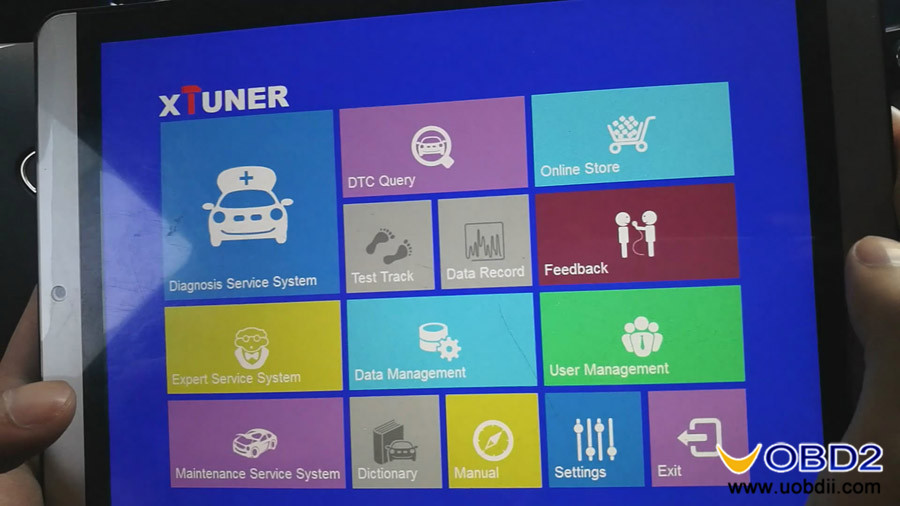
e3-diagnose-hyundai-01
  1. Click “Settings” to check Xtuner E3 basic version incl. system version, firmware version, link version and serial number.
  2. Back to the menu, click “Expert Service System”, and choose Hyundai PRO v19.1.
xtuner-e3-test-02
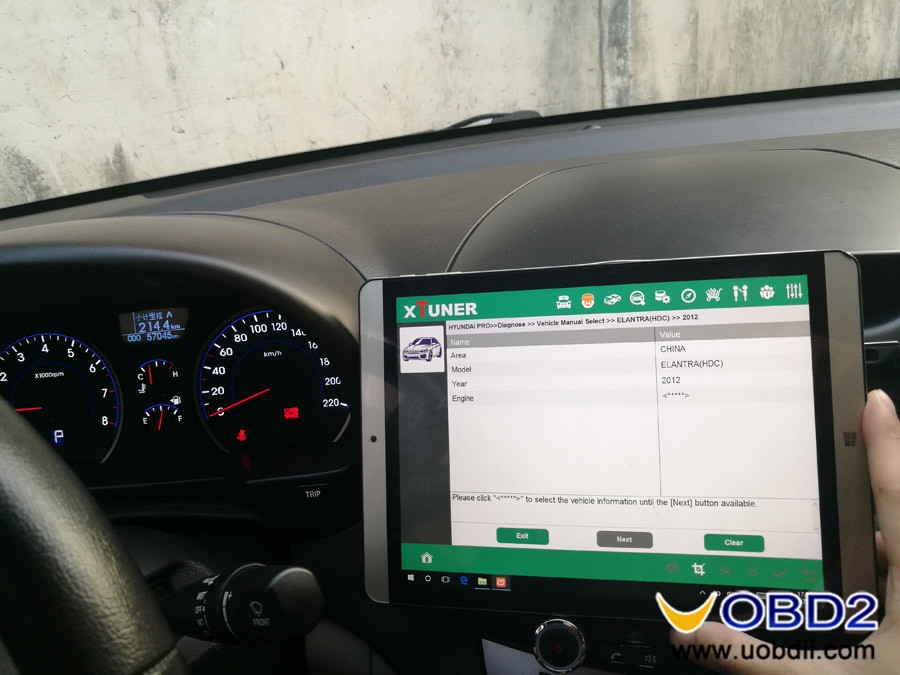
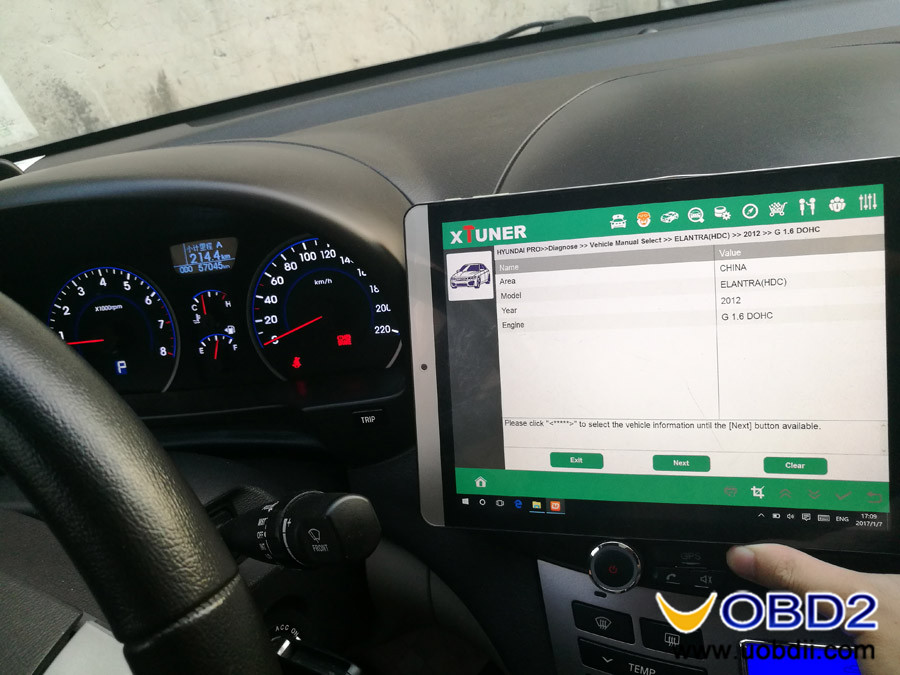
  1. Choose “Diagnose”-> “Vehicle Manual Select” incl. Area, model, year and engine. E.g Hyundai Elantra(HDC) 2012 G 1.6 DOHC.
xtuner-e3-test-hyundai-03 xtuner-e3-test-hyundai-04 xtuner-e3-test-05
  1. Click “system selection”, Xtuner E3 covers Engine, AT, ABS, airbag, BCM, IMMO and CODE. Here I select “Engine” to read and clear DTCs.
xtuner-e3-test-hyundai-06
  1. Function: data list
xtuner-e3-test-08
  1. Click “BCM”->”active test”-> “Wiper relay”, then “Head Lamp relay”,
xtuner-e3-test-09

Tuesday, December 18, 2018

How does Xtuner E3 work on Ford (Europe) Focus 1.6 tdci DPF Reset?


Hook Xtuner E3 diagnostic tool up to one Ford (Europe) Focus 1.6L 2003 and perform a series diagnostic functions incl. read & clear trouble code, data list, active test, special functions etc. It runs good, I like it very much and would like to share how it works.

Procedure:
* Before using Xtuner E3 to work on Ford Focus 1.6 tdci DPF Reset, please read the quick user manual (incl. registration and activation).

Select "Diagnosis Service".

Select Ford (Europe).


The Ford coverage of Xtuner E3.
Select "Diagnose".
Select "Vehicle Auto Scan".
Please turn the ignition on.
Ford Focus value.
System selection.


Many systems are supported.

We go for " PCM - Powertrain Control Module".
Have options "Trouble code, data list, active test, special function".
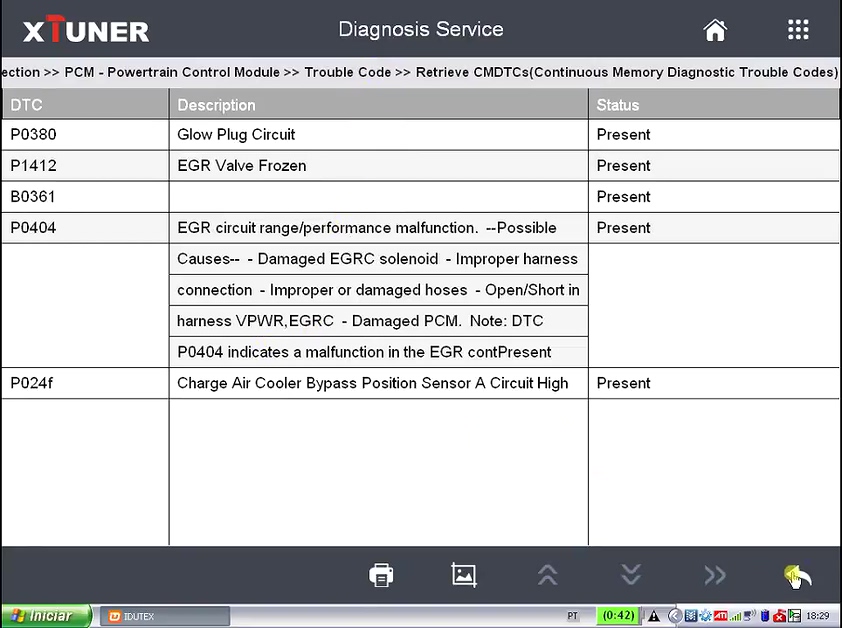
Firstly go for "Trouble code".

Retrieve CMDTCa .

Back to select "Data list".

Here attach a part values.


Take several value for example.


Go for special functions. 

Select "Reset the Diesel Particulate Filter Learned Values".

Just follow the on-screen instruction. 


Choose more data list for value and unit. 
Active test option.

Back to select "Quick Test" to see the value. 


DTC, description and status.


Back to select "Auto scan" for data list.

You can also select the part you want for the value. 

....
Ok, anyway Xtuner E3 diagnostic tool runs fluently, it's good for Ford Focus diagnostic service incl. read & clear trouble code, data list, active test, special function.

I enjoy it.

Tuesday, January 3, 2017

XTUNER E3 Client Download and setup, software activation and download

This post contains two parts, one is step-by-step procedure on XTUNER E3 Client Download and setup; the second part is on XTUNER E3 software activation and download. PS: XTUNER E3 is VPECKER Easydiag replacement, but with only green color.


Part 1: XTUNER-E3 Client Download

Browse Xtuner official site: http://www.tdintel.com, and download “XTUNER-E3 Setup Vx.xx”


XTUNER-E3 Client Setup

Unzip XTUNER-E3 Setup Vx.xx and run XTUNER-E3 setup.exe:


Please click “Next”.


Please click “Next”.


Please click “Install”.


XTUNER-E3 wireless diagnostic service system installs successfully.


Part 2: software activation and download


1) Software Activation

At first, please keep network working. Run XTUNER-E3 APP, then click “Online store” to get applications.


Please wait…


Please click “Online store”.


Please input the S/N number and password getting from the envelope, and then click “Login”.


Please click “Login”.


If the product is not activated, please click “Yes”.


Please input your information, the Email address and country are required, and then click “Activate”.

Note:

Your email address must be real in order to get the activated link and the further better service from the manufacturer. The software update reminder and the new product release information will be sent to your email.

If you do not receive the activation email, please add "service@tdintel.com" to the white list of your mailbox and try the activation process again.

Company name: company name must be filled in and the length is within 250 characters.

Country: please choose your country in the list.

Press “Yes” to confirm your information:


Please click the link to get the confirmation from the manufacturer.


2) Software Downloads

After the activation, please login the online store again, and get the APPs upgrade.


Please, click “Login” to download the software.


There are three modes for downloading, one by one and one-click. It may take a long time to download all the software, due to customers’ network speed reason.


3). Software Management

Users can delete vehicle software here. You can delete one by one or all-selected delete.